Photos to a document
How to turn phone photos into one PDF
By ArchwayPDF 4 min read
A few photos of paper documents are easier to share as a single PDF. Start with JPG or JPEG images, arrange them in reading order, then choose a consistent page size. The conversion happens on your device without uploading the photos.
Open JPG to PDFA worked example
- Start with
- Three JPG photos: cover.jpg · receipt.jpg · notes.jpg
- Finish with
- One 3-page PDF with one photo on each page
Before you start
Photograph the whole page in good light and check that small text is readable. Crop distracting edges and correct the image in your phone's photo editor first. If your phone saved HEIC or another format, export a JPEG copy; changing the filename extension alone does not convert an image.
Step by step
Select your JPG photos
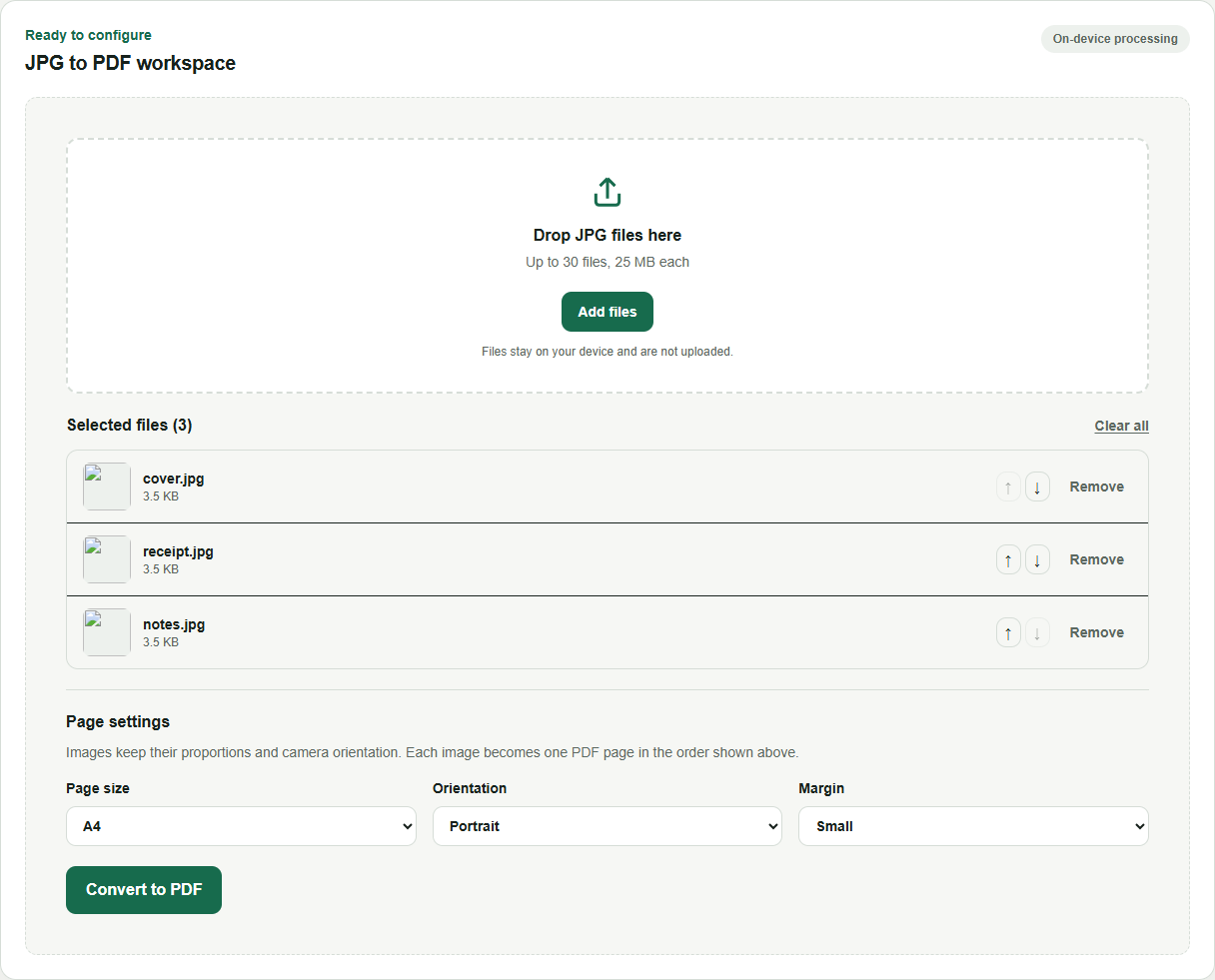
Open JPG to PDF and choose the JPG or JPEG files. For this example, select cover.jpg, receipt.jpg, and notes.jpg. Check the previews to make sure you selected the intended photos.
Arrange the reading order
Use the up and down arrows beside the filenames to place the cover first, the receipt second, and the notes third. Each image becomes a separate PDF page.
Choose page size and margins
For a consistent document, choose A4 or Letter in Page size, Portrait in Orientation, and Small in Margin. Fit to image instead follows the image dimensions. Choose a landscape orientation when wide photos need more room.
Convert, download, and inspect
Select Convert to PDF, then Download file when the result is ready. Open the downloaded PDF, count its three pages, and zoom in on the smallest text. Make sure the photos are upright and no important content was already cropped out of the source images.
Check your result
- Check all three pages are in the intended order.
- Zoom in to confirm names, dates, and small print are readable.
- Check the recipient's page-size and file-size requirements.
What to keep in mind
This tool accepts JPG/JPEG images. It does not run OCR, straighten a photographed page, remove shadows, or restore detail from a blurry photo. A4 or Letter changes the page layout, not the quality of the original photograph. Large high-resolution photos can still produce a large PDF.
Common questions
Can I use photos from an iPhone?
Yes, if the files are JPG or JPEG. If they are HEIC, use your device's export or conversion option to create JPEG copies before selecting them.
Will the text become selectable?
No. Each photo is placed on a PDF page as an image. The conversion does not recognize or add selectable text.
Can I add these photos to an existing PDF?
Create the photo PDF first. Then use Merge PDF to combine it with the existing PDF in the order you need.
Put the guide into practice
Use JPG to PDF with your own files. For another part of the workflow, try Merge PDF, Extract PDF Pages, JPG to PDF, or Delete PDF Pages.
These browser tools process your documents on your device. Read our privacy policy for details.