Combine documents
How to combine scanned documents into one PDF
By ArchwayPDF 4 min read
A scanner can leave you with a separate PDF for each document. Combine those files into one ordered packet before sharing an application, a set of receipts, or a collection of notes. ArchwayPDF merges existing PDF pages in your browser, so the scans stay on your device.
Open Merge PDFA worked example
- Start with
- cover.pdf: 1 page · receipts.pdf: 2 pages · notes.pdf: 1 page
- Finish with
- One 4-page PDF: cover → two receipt pages → notes
Before you start
Save each scan as a PDF and open it once to check that every page is legible and facing the right way. If your scans are JPG photos, first use JPG to PDF. Keep the original files so you can start again if the packet needs changes.
Step by step
Choose the scanned PDFs
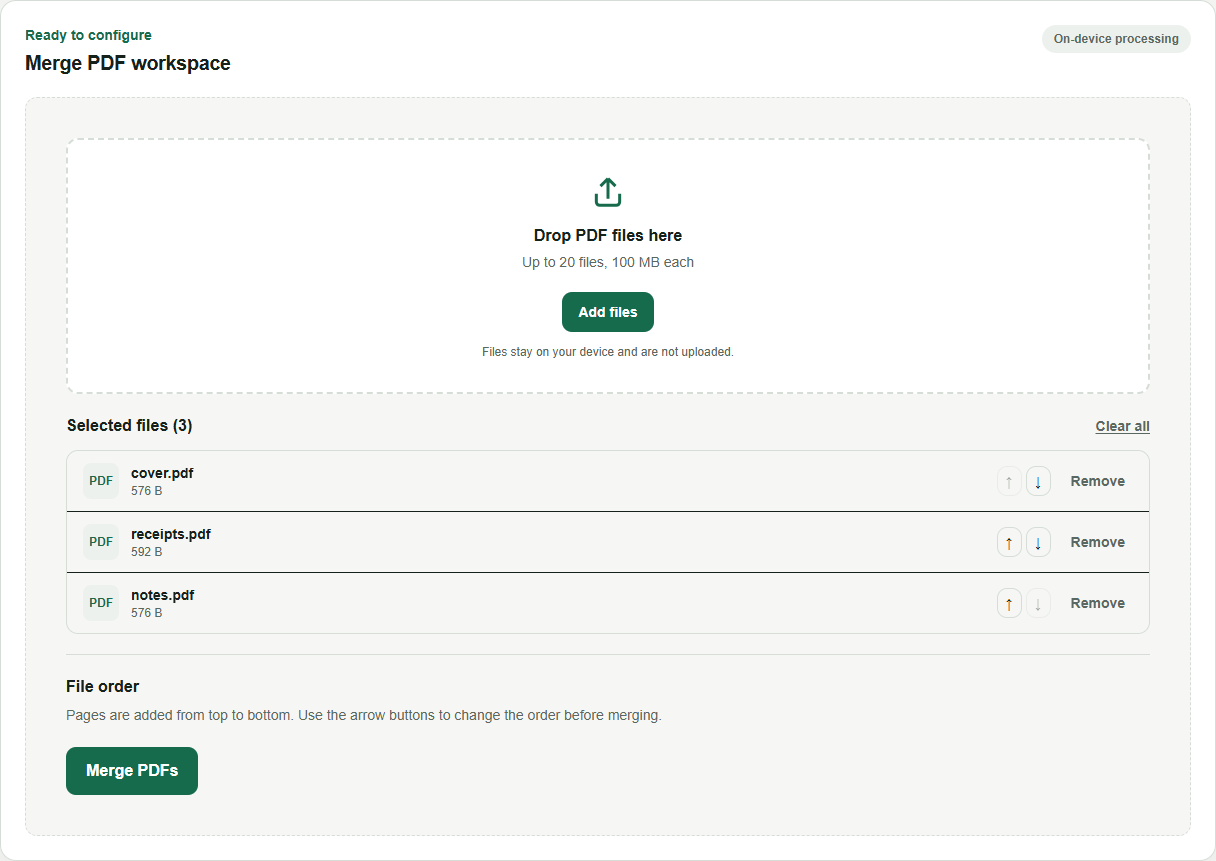
Open Merge PDF using the button above and select the PDF files you want to combine. For the example, choose cover.pdf, receipts.pdf, and notes.pdf. The file list shows the order that will be used.
Put the files in reading order
Use the up and down arrows beside each filename. Put cover.pdf first, receipts.pdf second, and notes.pdf last. Every page from the first file is added before any page from the second file; merging does not interleave pages.
Merge and download
Select Merge PDFs. When Your file is ready appears, select Download file and save the result. Rename the downloaded copy to something you can recognize, such as application-packet.pdf.
Check the complete packet
Open the downloaded PDF in a PDF viewer. In this example it should contain four pages. Check the boundary between each original document, particularly the first receipt after the cover and the notes at the end.
Check your result
- Count the output pages: 1 + 2 + 1 should equal 4.
- Check that no scan is upside down, missing, or included twice.
- Confirm the file meets the recipient's size limit before sending it.
What to keep in mind
Merging does not compress large scans, improve a blurry image, or run OCR. A scan without a text layer remains an image-based PDF. This workflow is for ordinary readable PDFs; encrypted files may need an unlocked copy first. Rewriting a digitally signed PDF can affect its signature validity.
Common questions
Can I combine JPG scans with PDF files?
Convert the JPG scans with JPG to PDF first, then add that PDF to Merge PDF with the existing documents. Merge PDF takes PDF files, not JPG images.
Can I put a page from one file between pages of another?
The merge list orders whole files. Extract the required page ranges into separate PDFs first, then merge those pieces in the order you need.
Will merging make scanned text searchable?
No. Merging copies PDF pages; it does not recognize text in images. Existing text layers can remain in the output, but image-only scans do not gain a text layer.
Put the guide into practice
Use Merge PDF with your own files. For another part of the workflow, try Merge PDF, Extract PDF Pages, JPG to PDF, or Delete PDF Pages.
These browser tools process your documents on your device. Read our privacy policy for details.