Keep selected pages
How to extract specific pages from a PDF
By ArchwayPDF 3 min read
You may only need the cover and a few supporting pages from a longer document. Extract PDF Pages creates one new PDF from the pages you choose. The original file stays unchanged, and you can enter the page numbers in the order you want them to appear.
Open Extract PDF PagesA worked example
- Start with
- A 6-page PDF; selection entered as 5, 1-2
- Finish with
- One 3-page PDF: source page 5 → source page 1 → source page 2
Before you start
Open your source PDF and count from its first physical page. A cover is page 1 even when the document's printed numbering starts later. Note the positions of the pages you need, and check that the source is a readable PDF.
Step by step
Open the source document
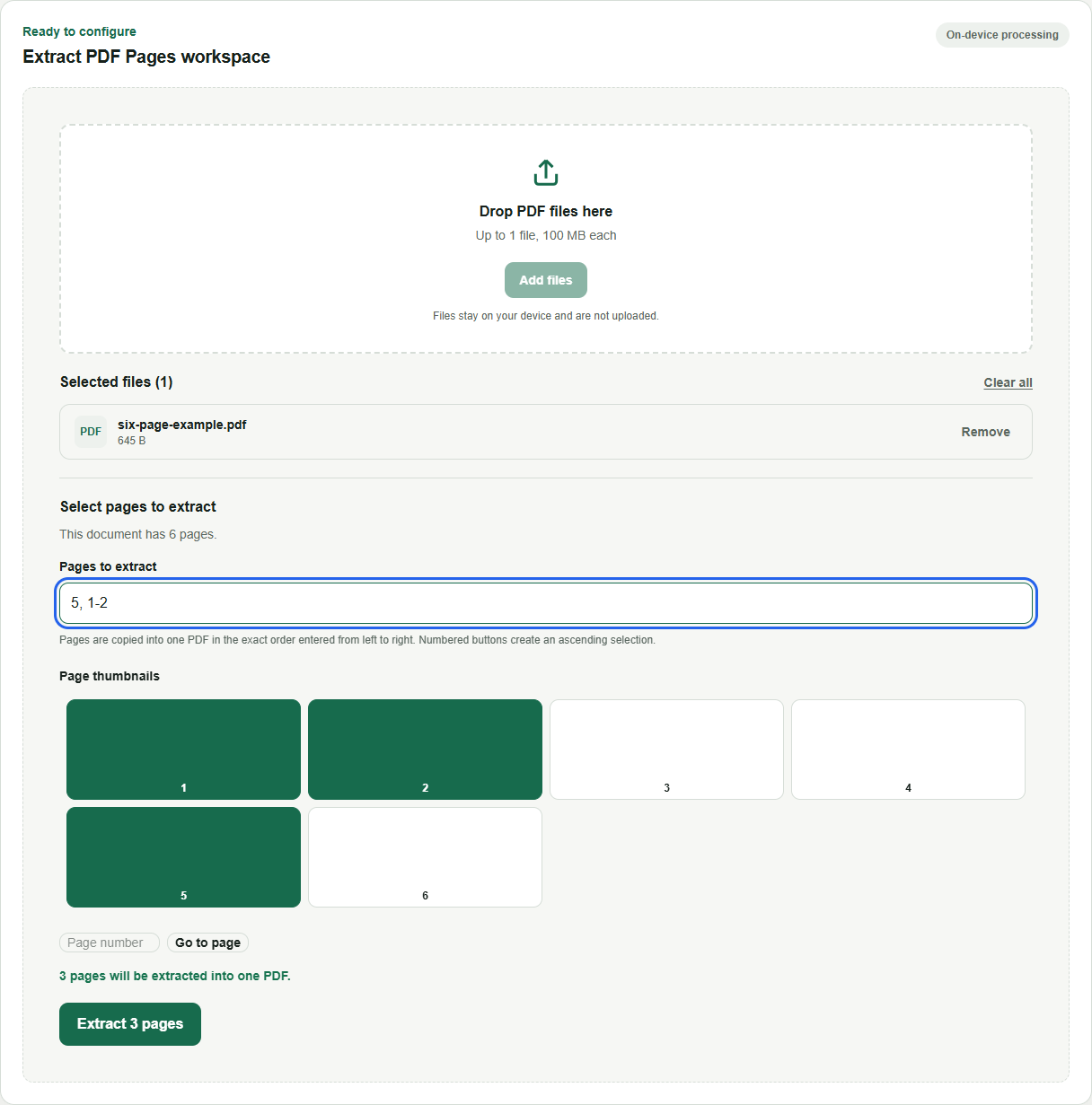
Open Extract PDF Pages and select one PDF. Wait until the document page count appears. The example uses a six-page document.
Enter the pages to keep
In Pages to extract, enter 5, 1-2. A comma separates selections and a hyphen selects an inclusive range. The typed selection is read from left to right, so page 5 comes before pages 1 and 2.
Review the selection
Check the selected page buttons and the count below them. For this example, three pages should be selected. Clicking the numbered buttons creates an ascending selection; if you need a custom order, enter and recheck the final order in the text field.
Extract and save the new PDF
Select Extract 3 pages, wait for the result, and select Download file. Open the saved copy and confirm that the pages appear as 5, 1, 2 from the source document.
Check your result
- Use PDF page positions, not the page numbers printed inside the document.
- Check that the output contains only the pages you intended to share.
- Reopen the downloaded copy and verify both the count and reading order.
What to keep in mind
Extraction produces one PDF containing the selected pages. It does not create a separate file for each range, redact information within a page, or remove hidden metadata. If your goal is to remove a few pages while keeping everything else, Delete PDF Pages may be easier.
Common questions
Does extraction remove pages from the original?
No. The tool creates a downloadable copy. Your original PDF on your device is unchanged.
Why did I get the wrong page?
Printed numbering can differ from the file's physical positions. Count the cover and introductory pages too. The first page in the PDF is position 1.
How do I save multiple page ranges as separate PDFs?
Use Split PDF when you need separate outputs for page ranges. Extract PDF Pages combines your selection into one output file.
Put the guide into practice
Use Extract PDF Pages with your own files. For another part of the workflow, try Merge PDF, Extract PDF Pages, JPG to PDF, or Delete PDF Pages.
These browser tools process your documents on your device. Read our privacy policy for details.