Clean up a scan
How to remove blank pages from a scanned PDF
By ArchwayPDF 3 min read
Double-sided scanning often captures empty backs as extra PDF pages. You can remove those pages manually while keeping the pages that contain your document. ArchwayPDF creates a new PDF on your device and leaves the original file unchanged.
Open Delete PDF PagesA worked example
- Start with
- A 6-page scan with blank pages at positions 2, 4, and 6
- Finish with
- One 3-page PDF containing source pages 1, 3, and 5
Before you start
Review every page in a PDF viewer before removing anything. A page that looks empty at a glance may contain a faint stamp, handwritten note, or footer. Write down the physical PDF page positions of the genuinely blank pages.
Step by step
Select the scanned PDF
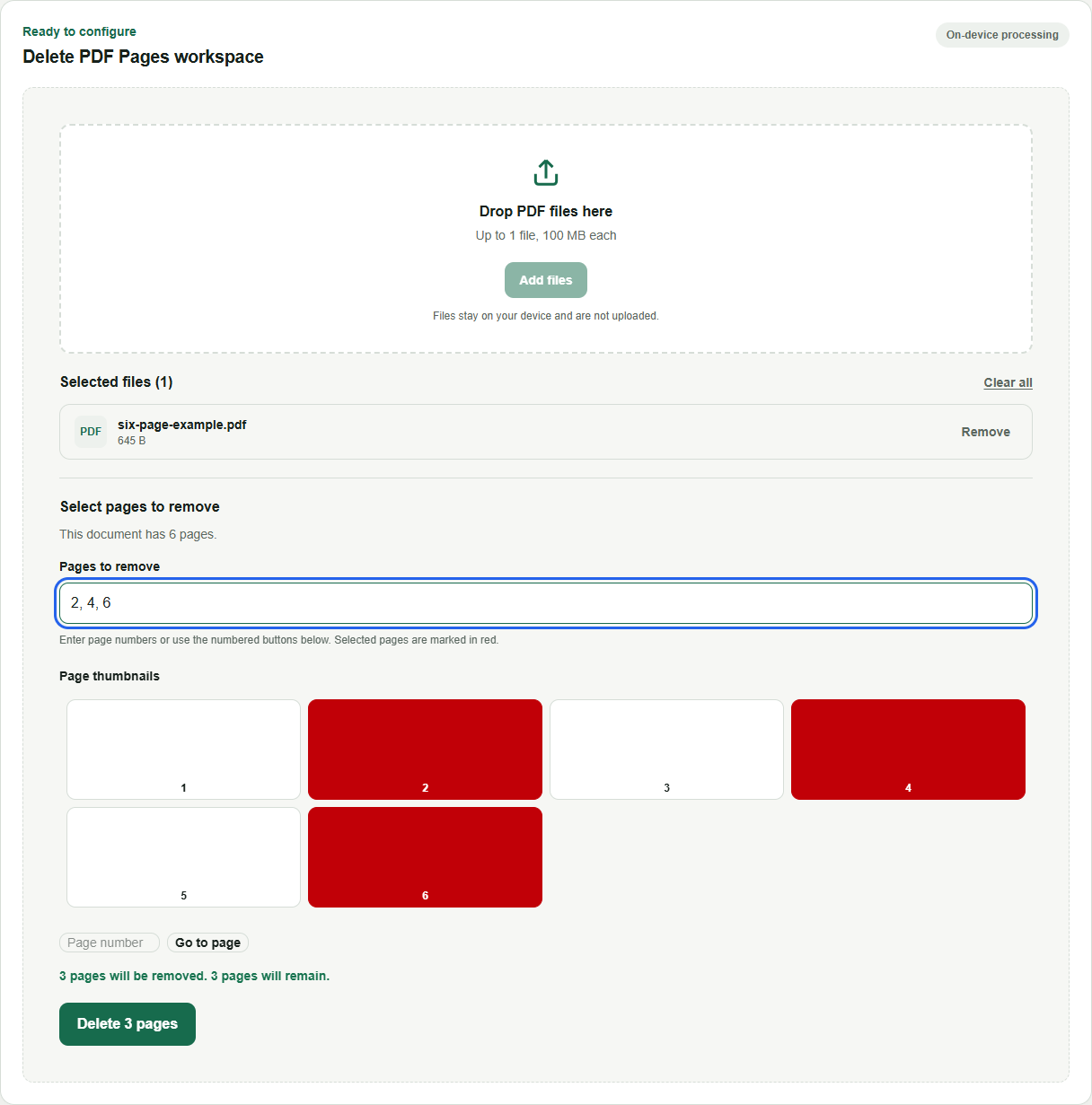
Open Delete PDF Pages and choose the source file. Wait for its page count to appear. In the example, the source document has six pages.
Select the blank pages
In Pages to remove, enter 2, 4, 6, or choose those numbered page buttons. These are the pages to delete, rather than the pages to keep. Do not assume every even page is blank without reviewing the scan.
Check how many pages remain
The selection summary should show that three pages will be removed and three will remain. At least one page must remain. If the counts differ, correct the selection before processing.
Delete and review the saved copy
Select Delete 3 pages, then Download file when it is ready. Open the downloaded PDF and verify that source pages 1, 3, and 5 remain in their original order, with no missing content.
Check your result
- Inspect supposedly blank pages for faint content before deleting them.
- Confirm that the output has 6 − 3 = 3 pages in this example.
- Keep the original scan until you have checked the complete downloaded copy.
What to keep in mind
Blank-page removal is manual: the tool does not automatically detect empty pages or distinguish faint text from scan noise. It removes entire pages, not text or images within a page. Rewriting a digitally signed document can affect its signature validity.
Common questions
Does the tool detect blank pages automatically?
No. You inspect the source document and select the page positions to remove. The tool deletes exactly the selected pages.
Can I undo the deletion?
The original file remains unchanged on your device. If the output is wrong, select the original again and create a new copy with the corrected selection.
Should I delete or extract pages?
Delete PDF Pages is convenient when you know the few pages to remove. Extract PDF Pages is convenient when you know the few pages to keep, or want to set a different output order.
Put the guide into practice
Use Delete PDF Pages with your own files. For another part of the workflow, try Merge PDF, Extract PDF Pages, JPG to PDF, or Delete PDF Pages.
These browser tools process your documents on your device. Read our privacy policy for details.